



The goal of this handbook is to quickly introduce you to the basics of JavaScript so you can start programming applications.
Instead of covering all the theories and concepts of JavaScript, I'll be teaching you only the most important building blocks of the language. We'll cover things like variables, data types, functions, objects, arrays, and classes. You'll also learn how to mix them all to build a small but solid program.
We're also going to leave out HTML, CSS, and using JavaScript in the browser. This tutorial focuses only on JavaScript as a programming language and uses the terminal to run the code.
This tutorial also has exercises for each section which gives you time to practice what you learned and "drill" the knowledge into your brain.
This handbook is completely free right here in this webpage. If you want the Kindle or paperback version of this tutorial, you can pay a small fee for it. It'll help support me in creating an in-depth JavaScript Tutorial that will help you build a complete web application.
Table of Contents
1 - JavaScript Introduction
Why learn JavaScript
JavaScript vs Java
2 - How to Set Up Your Computer
How to Install VSCode
How to Install Node.js
3 - Quick Console Introduction
4 - Time to Say Hello World!
5 - JavaScript Code Structure
Statements
Comments
Execution Flow
Exercise #1
6 - JavaScript Variables
Variable naming
Constant variable
The var keyword
Exercise #2
Summary
7 - JavaScript Basic Data Types
Strings in JavaScript
Numbers (integers and floats) in JavaScript
Booleans in JavaScript
Undefined in JavaScript
Null in JavaScript
8 - Type conversion and coercion
Type coercion
Type coercion rules
Why you should avoid type coercion
9 - Operators in JavaScript
Arithmetic operators
The assignment operator
The comparison operators
Logical operators
The typeof operator
Exercise #3
10 - JavaScript Arrays
Array index position
Special methods for array manipulation
Exercise #4
11 - Control Flows (Conditionals) in JavaScript
The if...else statement
The switch...case statement
The switch statement body
Switch statement use cases
Exercise #5
12 - Control Flows (Loops) in JavaScript
The for statement
When to use the for loop?
The while statement
When to use the while loop?
Exercise #6
13 - Functions in JavaScript
How to create your own function
Function parameters and arguments
Default parameters
Default parameters and null
The return statement
Variable scope
The rest parameter
Arrow function
Single and multiline arrow functions
Arrow function without round brackets
Arrow function doesn't have arguments binding
How to convert a normal function to an arrow function easily
Exercise #7
14 - Objects in JavaScript
How to access object values
How to add a new property to the object
How to modify object properties
How to delete object properties
How to check if a property exists in an object
Exercise #8
Final Exercise: Build a Cash Register Machine
Conclusion
Solutions
1 - JavaScript Introduction
JavaScript was created around April 1995 by Brendan Eich. At the time, he was working to develop a browser for a company called Netscape. He was told that he only had 10 days to design and code a working prototype of a programming language that could run on the browser.
He needed to create a language that appealed to non-professional programmers like Microsoft Visual Basic.
The reason he was given only 10 days was that Netscape needed to release its browser, which at the time was in competition with Microsoft.
In the beginning, JavaScript was not as powerful as it is today, since it was originally designed to add interaction and animation for web pages. It wasn't until 2005 when jQuery and AJAX were released that JavaScript began to be used in every website.
People simply didn't have an easy alternative to jQuery and AJAX for DOM manipulation and sending asynchronous requests. Plus, an active community of JavaScript developers kept adding new features to the library.
Then Google launched its modern Chrome browser, and Facebook started getting more people online. JavaScript began to grow to accomodate the ambitions of these giant internet companies.
Browsers began developing APIs that you could use in JavaScript. JS could retrieve information such as IP addresses and geographic locations from the browser, adding more power to internet companies to localize the features of their websites.
Then another innovation happened to make JavaScript even more powerful.
A server-side environment named Node.js was released in 2009, allowing JavaScript to run on the server side like PHP, Java, Python, Ruby, and many more. It also enabled devs to develop full-stack web applications using only JavaScript.
Today, JavaScript is a language that can power the web, desktop, and mobile applications.
Here's a quote from Tim O'Reilly, the founder of O'Reilly Media:
Learning JavaScript used to mean you weren't a serious developer. Today, not learning JavaScript means the same thing.
Learning JavaScript is now critical for people who want to be web developers.
Why learn JavaScript?
There are 4 good reasons why you need to learn and deeply understand JavaScript:
JavaScript is the only language that works in the browser
It's fairly easy to learn (but hard to master)
It's an essential language for making web applications
There are many career opportunities for JavaScript devs
Learning JavaScript opens tremendous opportunities where you can be a frontend, backend, or mobile developer.
Basically, learning JavaScript is a gateway to career improvements in tech.
JavaScript vs Java
In the beginning, JavaScript was actually named LiveScript. It was renamed to JavaScript because Java was a very popular programming language.
Since most software developers were already familiar with Java, the name JavaScript was thought to help in marketing JavaScript as a great programming language and draw the interest of developers at the time.
Just to be clear, JavaScript and Java are two completely different programming languages. You don't need to know Java to learn JavaScript (or the other way around). :)
2 - How to Set Up Your Computer
To write a program using JavaScript, you need to install 2 free tools that are available for all operating systems.
The first tool to install is Visual Studio Code.
How to Install VSCode
Visual Studio Code or VSCode for short is a text editor program created for the purpose of writing code. Aside from being free, VSCode is open source and available on all major operating systems.
You can use VSCode on Windows, macOS, and Linux, so if you don't have a text editor on your computer, I recommend that you install VSCode here.
Now that you have a text editor to write JavaScript code, you need a software to run JavaScript code. Let's install Node.js next.
How to Install Node.js
To run JavaScript outside of the browser, you need to install Node.js, which is essentially a JavaScript runner.
Simply go to the Node.js website at nodejs.org and download the latest LTS version for your computer. Once the download is complete, install it on your system.
You need to run Node.js using the console, so open your command line or terminal application and run the following command:
node -vThis command will output the version of your freshly installed Node.js into the console.
3 - Quick Console Introduction
The console is a text-based interface that you can use to type and run commands on your computer. On Windows, it's called the Command Line. On macOS and Linux it's known as the Terminal.
You're not going to use all the commands available within the console. In fact, you only need to know 7 basic commands to help you run JavaScript code.
First, open the console program on your computer and type the pwdcommand:
pwdThis is the command you use to find out which directory your terminal is currently on. pwdis short for print working directory.
To change the working directory, you need to run the cdcommand.
Here's an example to move into a child directory:
cd directory_name/directory_nameTo move up to a parent directory, you specify ..next to the command:
cd ..To go up more than one directory, use ../..
To clear your console from previous commands and output, use the clearcommand:
clearTo print out the list of files and directories in the current directory, run the lscommand:
lsTo create a new file, use the touchcommand followed by the file name and extension:
touch index.jsThe command above will create a new JavaScript file named index.json the current working directory.
To create a new directory, use the mkdircommand followed by the directory name:
mkdir my_projectTo run JavaScript using Node.js, specify nodefollowed by the file name as follows:
node index.jsYou'll see any output from the code in the same console.
There are lots of things you can do with the console, but these 7 commands would be enough because we only need it to run JavaScript code.
Next, let's run your first JavaScript program!
4 - Time to Say Hello World!
It's time to run your first JavaScript program using Node.
From the console, create a new JavaScript file named index.jsusing the touchcommand.
touch index.jsNext, open the file using VSCode and write the following line of code into the file:
console.log("Hello World!");Back on the console, run this script with Node:
node index.jsThe console should execute the index.jsfile and print "Hello World!".
You've just run your very first JavaScript program using Node.js. Excellent!
When you run the node index.jscommand, the Node.js program starts reading the script line by line from top to bottom.
The nodeprogram sees that you wrote the word console.logfollowed by parentheses (), so it knows that you're instructing it to print something. The program then reads what you put in the parentheses and prints it out on the console.
In your VSCode or other text editor program, you should see different parts of your code highlighted with different colors. This is a feature of the text editor called syntax highlighting, and it's really useful to help you distinguish different parts of the code.
The logkeyword is a function, so it gets highlighted in one color, while the words in the parentheses have another color.
A function is simply a piece of code that's used to perform a certain task. The log()function is used to "print" whatever you put inside the parentheses.
On the other hand, the consolekeyword is an object, which is a standalone property that gives access to certain functionalities.
We'll learn more about functions and objects later. For now, just remember that the console.log()keyword is used to print things to the console.
Next, let's start with learning JavaScript code structure.
5 - JavaScript Code Structure
A computer program is a series of pieces of code written in a text file. These text files are then run through a software that's designed specially for running the code. The Node.js software you downloaded previously is the tool that processes JavaScript code.
Before we go further, let's understand the structure of code.
Statements
A statement is a single instruction for the computer to run. Think of it like a sentence, but for computers. We can end a statement by using a semicolon ;just like we can end a sentence using a dot .
You can write multiple statements in a single line, but the convention is to write one statement per line:
// This is hard to readconsole.log("Hello World!"); console.log("I'm learning JavaScript");// Now it's betterconsole.log("Hello World!");console.log("I'm learning JavaScript");Each statement is an expression of some action that needs to be carried out by the software that executes the code.
Comments
In programming, are text we use to communicate the context of the code written in the file.
To write a comment in JavaScript, you need to add two forward slashes //before the comment as shown below:
// This is a comment// This is also a comment// Below print two lines of statementsconsole.log("Hello World!");console.log("I'm learning JavaScript");Comments are ignored by the language processor, so you can use to disable some code without having to delete that code.
The code below shows how to disable the second print statement:
console.log("Hello World!");// console.log("I'm learning JavaScript");Execution Flow
A language processor such as Node.js executes statements in a top-down approach. The statement written in the first line will be executed before the second line, then continue down to the last line:
console.log("Hello World!");console.log("I'm learning JavaScript");// Printing numbersconsole.log(1);console.log(2);console.log(3);Output:
Hello World!I'm learning JavaScript123If you want to print the numbers before the text, then you need to move the corresponding console.log()lines to the top.
Exercise #1
Try to print your name, age, and occupation on the console.
The output would look as follows:
John Doe19StudentNow that you understand the basic code structure of JavaScript, let's continue with learning variables next.
6 - JavaScript Variables
Before explaining what a variable is, I want you to change the code you've written in the index.jsfile.
Change the code in that file as follows:
let message = "Hello World!"console.log(message)Next, run the code using the node index.jscommand. You'll see the same output as when you write the 'Hello World!' message directly inside the console.log()function. How can this be?
This is because the message written in the code above is a variable.
In programming, a variable is simply a name that you give to a value so that you can access that value later. You can think of a variable as a label that can be tagged to a certain value, so you can refer to the value using the label.
To declare a variable, you need to type the keyword letfollowed by the variable name.
The first line in the code tells JavaScript to associate the messagevariable with the value Hello World!:
let message = "Hello World!"In the second line, JavaScript is instructed to print the value of message, and that's exactly what it does.
You can change the value of your variable by re-assigning another value as follows:
message = "Hello World!"console.log(message)message = "Nice weather!"console.log(message)Run the file and you'll see two lines printed as the output:
Hello World!Nice weather!Variables are used to reference data so that you can use the same data multiple times in your program.
Next, let's see some rules for naming variables in JavaScript.
Variable naming
JavaScript has a few naming rules that you need to know to avoid naming errors.
Variable names can only contain alphabet letters, numbers, and underscores (_). This means you can name your variable message, message_1, message_2.
The first character of the variable name must not be a number. message_1is okay. 1_messageis not.
You can't use reserved keywords such as consolebecause they are used by JavaScript to do certain things. There are many other keywords used by JavaScript that you'll learn in the following sections such as if, for, and while.
Variable names are case-sensitive, which means Message, MESSAGE, and messagecan be used to create three different variables. But of course, I don't recommend using similar names as it causes confusion.
Sometimes, you need more than one word to declare a variable name. JavaScript has two naming conventions that are used worldwide:
camelCasesnake_case
Camel case is a naming convention that uses an uppercase letter for the first character for subsequent words. Here's an example:
let myAwesomeVariableThe snake case naming convention uses an underscore to separate words. Here's an example:
let my_awesome_variableBoth are acceptable naming conventions, but you should stick to one of them in your code to avoid confusion.
Constant variable
There are times when you need to store a value that never changes in a variable.
A constant variable is a variable that doesn't change its value as long as the program is running. In other programming languages, changing the value of a constant will produce an error.
In JavaScript, a constant variable is declared using the constkeyword.
The following shows how to declare 2 constants in JavaScript:
const FILE_SIZE_LIMIT = 2000const MAX_SPEED = 300The naming convention for a constant is to use all uppercase letters, although using lowercase letters also works. The uppercase is just a standard to make constants stand out more.
The var keyword
The varkeyword is used to declare variables with a global scope. This keyword was the only keyword you can use to declare variables before JavaScript released the new letand constkeyword in 2015.
As of today, you should avoid using varif you can, since varcan introduce bugs that you can avoid by using the letkeyword.
To show you what I mean, consider the following example:
if(true) { var name = "Nathan";}console.log(name)The code above will print the namevariable just fine, but it really should not because the variable nameis declared inside the ifblock.
This is because any variable declared using the varkeyword is accessible from everywhere. The scope of that variable is global.
On the other hand, the letkeyword has a block scope, which means the variable is only accessible from the block and all its child blocks.
But why bother with scoping the variable? This is because when you have hundreds or thousands of code lines, it can become frustrating to trace an error that occurs because of global variables.
There's a principle in software development called "principles of least exposure", which means you don't expose any part of your program that's unnecessary.
Block scoping a variable ensures that a variable is exposed and accessible only in parts of your codebase that require the variable.
A variable declared using the letkeyword is identical to a variable declared using varexcept for the scope level.
if(true) { let name = "Nathan";}console.log(name) // Error: name is not definedThis also means that you now have var, let, and constkeywords to declare a variable. Which one to use?
In general, you can declare a variable with constfirst. When you code your application and realize that you need to change the variable assignment, you can change the declaration to let.
If you know from the start that the variable's value will change, then you can use letimmediately. Just don't use vartoday or people might get mad at you.
Exercise #2
Write a program with three variables, each with the following value:
The first variable contains your name
The second variable contains your age
The third variable contains your occupation
Then print the variables using the console.log()method. Here's the example output:
John DoeStudent19Summary
How you use variables to make a program that does what you want it to do is one of the most important skills you can have as a programmer.
But before you learn more about how to make use of variables, let's learn about data types in JavaScript.
7 - JavaScript Basic Data Types
Data Types are simply definitions for different types of data known to a programming language.
A data type contains specifications about what you can and can't do with that data.
To show you a brain-friendly example, I'm sure you agree that 2 + 2 = 4?
Well, JavaScript also agrees with that:
console.log(2 + 2);// Output: 4But what if you try to add a number with letters as shown below?
console.log(2 + "ABC");Output:
2ABCAdding a number and letters together will cause JavaScript to concatenate or join the values together.
In this section, you're going to learn basic data types that JavaScript knows:
Strings
Numbers
Booleans
Null
Undefined
You will also see how these different types react to operators such as +shown in the above example.
First, let's start with strings.
Strings in JavaScript
Strings are simply data defined as a series of characters.
You've seen an example of string data previously when you call the console.log()function to print a message:
let message = "Hello, Sunshine!";console.log(message); // Hello, Sunshine!A string needs to be enclosed in quotations. You can use double quotes or single quotes, but they have to match.
You'll get an error when you use different quotation marks like this:
// Invalid or unexpected tokenlet message = "Hello';You can join two or more strings as one with the plus +symbol. Don't forget to add a space before the next string or you'll get a string without spaces!
let message = "Hello " + "and " + "Goodbye!";console.log(message);// Output: Hello and Goodbye!When printing a variable's value, you can also add strings in the console.log()function directly as follows:
let message = "Hello, Dave!";console.log("The message is: " + message);// Output: The message is: Hello, Dave!This is particularly useful when you have multiple strings to console.log in one sentence as follows:
let name = "John";let topic = "JavaScript";console.log(name + " is learning " + topic + " today");// Output: John is learning JavaScript todayOr you can also use the template strings format, which allows you to embed a variable directly inside the string as follows:
let name = "John";let topic = "JavaScript";console.log(`${ name} is learning ${ topic} today`);// Output: John is learning JavaScript todayTo use the template strings format, you need to use the backtick (`)character to wrap the string instead of quotations.
The variable is embedded in the string using the dollar symbol and curly brackets as in ${ variable}.
This way, JavaScript knows that you're referencing a variable inside the string.
When you have multiple strings to print in a single line, then the template strings format is more convenient because you didn't have to break the string with quotations and concatenations.
Next, strings can also represent numbers. You surround the numbers in quotations as follows:
let score = "10" + "30";console.log(score);// Output: 1030When you join two string numbers with a +symbol, JavaScript will join the two numbers instead of performing arithmetic addition.
This is how strings work in JavaScript. Let's look at numbers next.
Numbers (integers and floats) in JavaScript
Number data types represent different kinds of numbers. There are two types of numbers in JavaScript:
Integers
Floats
An integer is a whole number without decimals and fractions. Below, you see examples of two integers xand y:
let x = 1;let y = 2;console.log(x + y);// Output: 3On the other hand, floats refer to numbers with decimal points like this:
let f = 1.2;let z = 2.35;console.log(f + z);// Output: 3.55To create a float, you need to write a number and use .to define the decimal values.
With number types, you can perform arithmetic operations such as addition +, subtraction -, division /, and multiplication *just like how you use a calculator.
Booleans in JavaScript
Boolean is a type that represents trueand falsevalues.
You can think of Booleans as a light switch that can only be in one of two positions: on or off.
So it is with Boolean values in programming languages. They are used when JavaScript needs to make a decision: Go left or go right? Right or wrong?
Here's how you create Boolean values in JavaScript:
let on = true;let off = false;This data type is frequently used when you need to make a decision using a control flow. You'll see why Boolean values are very useful in developing a program later in Section 9.
Undefined in JavaScript
Undefined is a data type in JavaScript used to represent a variable that hasn't been assigned any value yet.
Anytime you declared a variable without assigning any value, the undefinedvalue will be assigned to that variable. For example:
let first_name;console.log(first_name); // undefinedYou can also assign undefinedto a variable explicitly as follows:
let last_name = undefined;But this is usually not recommended, because JavaScript has another value called nullwhich is used to mark a variable as empty.
Null in JavaScript
The nullvalue is a special data type that represents an empty or unknown value. Here's how you assign a variable as null:
let first_name = null;The code above means that the value of first_nameis empty or unknown.
At this point, you may be thinking what's the difference between undefinedand null? They seem to serve a similar purpose.
And you are correct. Both undefinedand nullare values that represent nothing, and other programming languages usually only have one, and that is null.
In JavaScript, the undefinedvalue is reserved as the default value when a variable is declared, while nullmeans you intentionally assign an "empty" value for the variable.
This slight difference will come to play later when you learn about functions in Chapter 13.
For now, just keep in mind that JavaScript treats undefinedas the "default" empty value and nullas the "intentional" empty value.
8 - Type Conversion and Coercion
At times, you might want to convert one data type into another so that the program runs as expected.
For example, suppose you need to convert a string into an integer so you can perform an addition between numbers.
If you have one of the numbers as a string, JavaScript joins them together instead of adding:
let x = "7";let y = 5;console.log(x + y); // 75To add the two numbers properly, you need to convert the xvariable into an integer.
Changing the data from one type to another is also known as type conversion or type casting. There are 3 functions frequently used to do type conversion:
Number()String()Boolean()
As their name implies, these type conversion functions will attempt to convert any value you specified inside the parentheses to the type of the same name.
To convert a string into an integer, you can use the int()function:
let x = "7";let y = 5;// Convert x to integerx = Number(x);console.log(x + y); // 12On the other hand, the String()function converts a value of another type to a string. If you type String(true), then you'll get 'true' back.
Passing a value of the same type as the function has no effect. It will just return the same value back.
Type coercion
In JavaScript, type coercion is a process where a value of one type is implicitly converted into another type.
This is automatically done by JavaScript so that your code won't cause an error. But as you'll see in this section, type coercion can actually cause undesired behavior in the program.
Let's consider what happens when you perform an addition between a numberand a stringin JavaScript:
console.log(1 + "1");As you've seen in the previous section, JavaScript will consider the number as a string and join the two letters as 11instead of adding them (1 + 1 = 2)
But you need to know that other programming languages don't respond the same way.
Programming languages like Ruby or Python will respond by stopping your program and giving an error as feedback. It will respond with something along the lines of "Cannot perform addition between a number and a string".
But JavaScript will see this and said: "I cannot do the operation you requested as it is, but I can do it if the number 1is converted to a string, so I'll do just that."
And that's exactly what type coercion is. JavaScript notices that it doesn't know how to execute your code, but it doesn't stop the program and respond with an error.
Instead, it will change the data type of one of the values without telling you.
While type coercion doesn't cause any errors, the output is actually something you don't want either.
Type coercion rules
Type coercion rules are never stated clearly anywhere, but I did find some rules by trying various silly code myself.
It seems that JavaScript will first convert data types to stringwhen it finds different data types:
1 + "1" // "11"[1 ,2] + "1" // "1,21"true + "1" // "true1"But the order of the values matters when you have an object. Writing objects first always returns numeric 1:
{ a: 1 } + "1" // 1"1" + { a: 1 } // "1[object Object]"true + { a: 1 } // "true[object Object]"{ a: 1 } + 1 // 1JavaScript can calculate between boolean and numeric types, because boolean values trueand falseimplicitly has the numeric value of 1and 0:
true + 1 // 1+1 = 2false + 1 // 0+1 = 1[1,2] + 1 // "1,21"Type coercion is always performed implicitly. When you assign the value as a variable, the variable type will never change outside of the operation:
let myNumber = 1;console.log(myNumber + "1"); // prints 11console.log(myNumber); // still prints number 1 and not stringYou can try to find some more on your own, but you hopefully understand what type coercion is and how it works by now.
Why you should avoid type coercion
JavaScript developers are generally divided into two camps when talking about type coercion:
Those who think it's a feature
Those who think it's a bug
If you ask me, I would recommend that you avoid using type coercion in your code all the time.
The reason is that I've never found a problem where type coercion is required for the solution, and when I need to convert one type into another, it's always better to do so explicitly:
let price = "50";let tax = 5;let totalPrice = Number(price) + Number(tax);console.log(totalPrice);Using explicit type conversion functions such as Number()and String()will make your code clear and transparent. You don't need to guess the correct data type required in your program.
Type coercion is one of the unique features in JavaScript that may confuse beginners, so it's good to clear it up early.
Next, we'll learn about JavaScript operators.
9 - Operators in JavaScript
As the name implies, operators are symbols you can use to perform operations on your data.
You've seen some examples of using the plus +operator to join multiple strings and add two numbers together. Of course, JavaScript has more than one operator as you'll discover in this section.
Since you've learned about data types and conversion previously, learning operators should be relatively easy.
Arithmetic operators
The arithmetic operators are used to perform mathematical operations like additions and subtractions.
These operators are frequently used with number data types. Here's an example:
console.log(10 - 3); // 7console.log(2 + 4); // 6In total, there are 8 arithmetic operators in JavaScript:
| Name | Operation example | Meaning |
| Addition | x + y | Returns the sum between the two operands |
| Subtraction | x - y | Returns the difference between the two operands |
| Multiplication | x * y | Returns the multiplication between the two operands |
| Exponentiation | x ** y | Returns the value of the left operand raised to the power of the right operand |
| Division | x / y | Returns the value of the left operand divided by the right operand |
| Remainder | x % y | Returns the remainder of the left operand after being divided by the right operand |
| Increment | x++ | Returns the operand plus one |
| Decrement | x-- | Returns the operand minus one |
These operators are pretty straightforward, so you can try them on your own.
As you've seen in the previous section, the +operator can also be used on strings data to merge multiple strings as one:
let message = "Hello " + "human!";console.log(message); // Hello human!When you add a number and a string, JavaScript will perform a type coercion and treats the number value as a string value:
let sum = "Hi " + 89;console.log(sum); // Hi 89Using any other arithmetic operator with strings will cause JavaScript to return a NaNvalue.
The assignment operator
The next operator to learn is the assignment operator, which is represented by the equals =sign.
In JavaScript, the assignment operator is used to assign data or a value to a variable.
You've seen some examples of using the assignment operator before, so here's a reminder:
// Assign the string value 'Hello' to the 'message' variablelet message = "Hello";// Assign the Boolean value true to the 'on' variablelet on = true;You may've noticed that the equals sign has a slightly different meaning in programming than in math, and you're correct!
The assignment operator isn't used to compare if a number equals another number in programming.
If you want to do that kind of comparison, then you need to use the equal to ==operator.
Assignment operators can also be combined with arithmetic operators, so that you can add or subtract values from the left operand.
See the table below for the types of assignment operators:
| Name | Operation example | Meaning |
| Assignment | x = y | x = y |
| Addition assignment | x += y | x = x + y |
| Subtraction assignment | x -= y | x = x - y |
| Multiplication assignment | x *= y | x = x * y |
| Division assignment | x /= y | x = x / y |
| Remainder assignment | x %= y | x = x % y |
Next, let's look at comparison operators.
The comparison operators
Comparison operators are used to compare two values. The operators in this category will return Boolean values: either trueor false.
The following table shows all comparison operators available in JavaScript:
| Name | Operation example | Meaning |
| Equal | x == y | Returns trueif the operands are equal |
| Not equal | x != y | Returns trueif the operands are not equal |
| Strict equal | x === y | Returns trueif the operands are equal and have the same type |
| Strict not equal | x !== y | Returns trueif the operands are not equal, or have different types |
| Greater than | x > y | Returns trueif the left operand is greater than the right operand |
| Greater than or equal | x >= y | Returns trueif the left operand is greater than or equal to the right operand |
| Less than | x < y | Returns trueif the left operand is less than the right operand |
| Less than or equal | x <= y | Returns trueif the left operand is less than or equal to the right operand |
Here are some examples of using these operators:
console.log(9 == 9); // trueconsole.log(9 != 20); // trueconsole.log(2 > 10); // falseconsole.log(2 < 10); // trueconsole.log(5 >= 10); // falseconsole.log(10 <= 10); // trueThe comparison operators can also be used to compare strings like this:
console.log("ABC" == "ABC"); // trueconsole.log("ABC" == "abc"); // falseconsole.log("Z" == "A"); // falseString comparisons are case-sensitive, as shown in the example above.
JavaScript also has two versions of each comparison operator: loose and strict.
In strict mode, JavaScript will compare the types without performing a type coercion.
You need to add one more equal =symbol to the operator as follows
console.log("9" == 9); // trueconsole.log("9" === 9); // falseconsole.log(true == 1); // trueconsole.log(true === 1); // falseYou should use the strict comparison operators unless you have a specific reason not to.
Logical operators
The logical operators are used to check whether one or more expressions result in either Trueor False.
There are three logical operators that JavaScript has:
| Name | Operation example | Meaning | | ----------- | ----------------- | --------------------------------------------------------------- | --- | ---------------------------------------------------------------------- | | Logical AND | x && y| Returns trueif all operands are true, else returns false| | Logical OR | x || y| Returns trueif one of the operands is true, else returns false| | Logical NOT | !x| Reverse the result: returns trueif falseand vice versa |
These operators can only return Boolean values. For example, you can determine whether '7 is greater than 2' and '5 is greater than 4':
console.log(7 > 2 && 5 > 4); // trueThese logical operators follow the laws of mathematical logic:
&&AND operator - if any expression returnsfalse, the result isfalse||OR operator - if any expression returnstrue, the result istrue!NOT operator - negates the expression, returning the opposite.
Let's have a little exercise. Try to run these statements on your computer. Can you guess the results?
console.log(true && false);console.log(false || false);console.log(!true);These logical operators will come in handy when you need to assert that a specific requirement is fulfilled in your code.
The typeofoperator
JavaScript allows you to check the data type by using the typeofoperator. To use the operator, you need to call it before specifying the data:
let x = 5;console.log(typeof x) // 'number'console.log(typeof "Nathan") // 'string'console.log(typeof true) // 'boolean'The typeofoperator returns the type of the data as a string. The 'number' type represents both integer and float types, the string and boolean represent their respective types.
Exercise #3
Guess the result of these operators in action:
console.log(19 % 3);console.log(10 == 3);console.log(10 !== "10");console.log(2 < "10");console.log("5" > 2);console.log((false && true) || false);10 - JavaScript Arrays
An array is an object data type that can be used to hold more than one value. An array can be a list of strings, numbers, booleans, objects, or a mix of them all.
To create an array, you need to use the square brackets []and separate the items using a comma.
Here's how to create a list of strings:
let birds = ['Owl', 'Eagle', 'Parrot', 'Falcon'];You can think of an array as a list of items, each stored in a locker compartment:
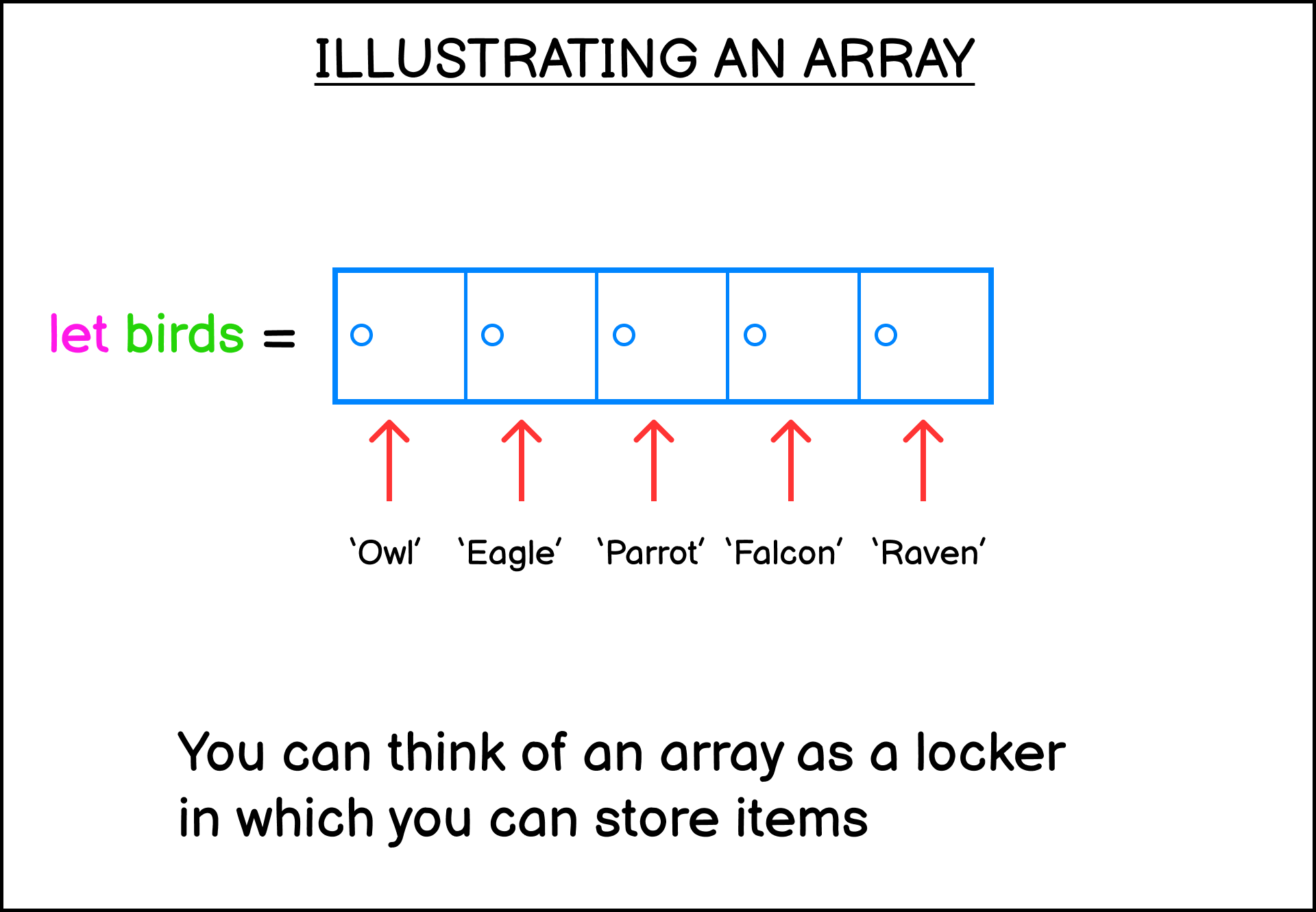
You can also declare an empty array without any value:
let birds = [];An array can also have a mix of values like this:
let mixedArray = ['Bird', true, 10, 5.17]The array above contains a string, a boolean, an integer, and a float.
Array index position
JavaScript remembers the position of the elements within an array. The position of an element is also called an index number.
Going back to the locker example, you can think of index numbers as the locker numbers. The index number starts from 0as follows:
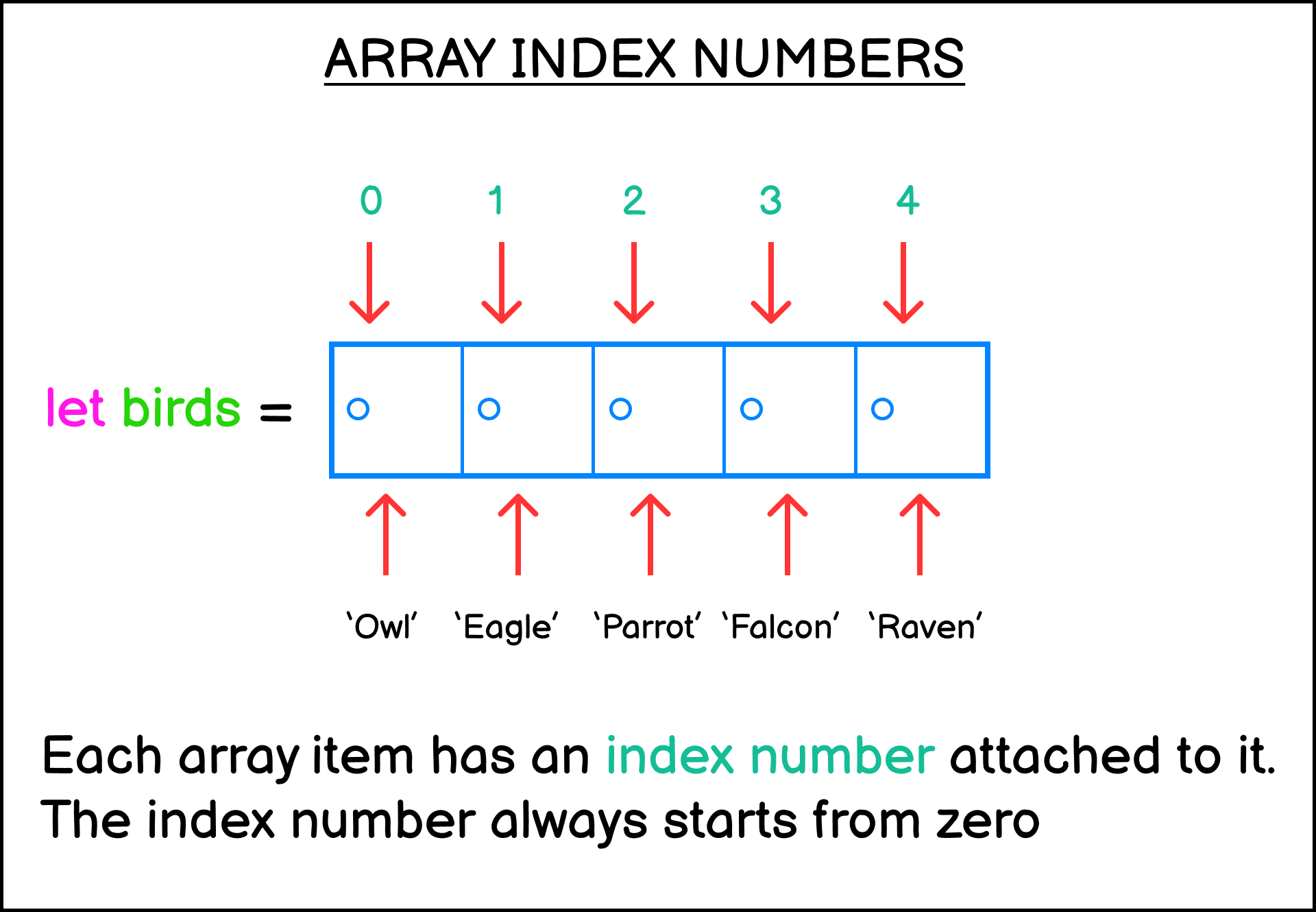
To access or change the value of an array, you need to add the square brackets notation [x]next to the array name, where xis the index number of that element. Here's an example:
// Access the first element in the arraymyArray[0];// Access the second element in the arraymyArray[1];Suppose you want to print the string 'Owl' from the birdsarray. Here's how you can do it.
let birds = ['Owl', 'Eagle', 'Parrot', 'Falcon'];console.log(birds[0]); // Owlconsole.log(birds[1]); // EagleThere you go. You need to type the name of the array, followed by the index number wrapped in square brackets.
You can also assign a new value to a specific index using the assignment operator.
Let's replace 'Parrot' with 'Vulture':
let birds = ['Owl', 'Eagle', 'Parrot', 'Falcon'];birds[2] = 'Vulture';console.log(birds);// ['Owl', 'Eagle', 'Vulture', 'Falcon']Because the array index starts from zero, the value 'Parrot' is stored at index 2 and not 3.
Special methods for array manipulation
Since array is an object, you can call methods that are provided by JavaScript to manipulate the array values.
For example, you can use the push()method to add an item to the end of the array:
let birds = ['Owl', 'Eagle'];birds.push('Sparrow');console.log(birds);// ['Owl', 'Eagle', 'Sparrow']Another method called pop()can be used to remove an item from the end of an array:
let birds = ['Owl', 'Eagle', 'Sparrow'];birds.pop();console.log(birds);// ['Owl', 'Eagle']The unshift()method can be used to add an item from the front at index 0:
let fishes = ['Salmon', 'Goldfish', 'Tuna'];fishes.unshift('Sardine');console.log(fishes);// ['Sardine', 'Salmon', 'Goldfish', 'Tuna']On the other hand, the shift()method can be used to remove an item from index 0:
let fishes = ['Salmon', 'Goldfish', 'Tuna'];fishes.shift();console.log(fishes);// ['Goldfish', 'Tuna']The indexOf()method can be used to find and return the index of an item in the array.
The method will return -1when the item isn't found inside the array:
let fishes = ['Salmon', 'Goldfish', 'Tuna'];let pos = fishes.indexOf('Tuna');console.log(pos); // 2To get the size of an array, you can access the lengthproperty:
let fishes = ['Salmon', 'Goldfish', 'Tuna'];console.log(fishes.length); // 3Note that we don't add parentheses next to the lengthkeyword above. This is because lengthis a property of the array object and not a method.
We'll learn more about objects in the coming tutorials.
Exercise #4
Create an array named colorsthat include the 'red', 'green, and 'blue' colors.
First, add a 'black' color after the last index of the array. Then print the array.
Next, remove the value 'red' and swap the position of 'green' and 'blue'. Print the array.
Finally, add the color 'yellow' on the first index of the array, then print the array.
The result output is as follows:
[ 'red', 'green', 'blue', 'black' ][ 'blue', 'green', 'black' ][ 'yellow', 'blue', 'green', 'black' ]You need to modify the original array using the methods explained in this section.
11 - Control Flows (Conditionals) in JavaScript
Up until now, the JavaScript code you've written is executed line by line from top to bottom. But what if you want to run some lines of code only when a certain condition is met?
A computer program usually needs to take into account many different conditions that can arise during the program's execution.
This is similar to how a human makes decisions in their life. For example, do you have money to cover the vacation to Japan? If yes, go. If not, then save more money!
This is where control flow comes in. Control flowis a feature in a programming language that allows you to selectively run specific code based on the different conditions that may arise.
Using control flows allows you to define multiple paths a program can take based on the conditions present in your program.
There are two types of control flows commonly used in JavaScript: conditionals and loops.
This section will focus on the conditional statements such as:
if...elsestatementswitch...casestatement
You'll learn about loop statements in the next section.
The if...else statement
The ifstatement allows you to create a program that runs only if a specific condition is met.
The syntax for the ifstatement is as follows:
if (condition) { // code to execute if condition is true}Let's see an example. Suppose you want to go on a vacation that requires 5000 dollars.
Using the ifstatement, here's how you check if you have enough balance:
let balance = 7000;if (balance > 5000) { console.log("You have the money for this trip. Let's go!");}Run the code above once, and you'll see the string printed on the terminal.
Now change the value of balanceto 3000and you'll get no response.
This happens because the code inside the ifstatement is only executed when the condition is true.
After the ifstatement, you can write another line of code below it as follows:
let balance = 7000;if (balance > 5000) { console.log("You have the money for this trip. Let's go!");}console.log("The end!");The second console.log()call above will be executed no matter what value you assign to the balancevariable.
If you want it to execute only when the ifcondition is met, then put the line inside the curly brackets as well:
let balance = 7000;if (balance > 5000) { console.log("You have the money for this trip. Let's go!"); console.log("The end!");}Next, suppose you need to run some code only when the ifstatement condition is not fulfilled.
This is where the elsestatement comes in. The elsestatement is used to run code only when the ifstatement is not fulfilled.
Here's an example:
let balance = 7000;if (balance > 5000) { console.log("You have the money for this trip. Let's go!");} else { console.log("Sorry, not enough money. Save more!");}console.log("The end!");Now change the value of balanceto be less than 5000, and you'll trigger the elseblock in the example.
JavaScript also has the else ifstatement which allows you to write another condition to check should the ifstatement condition isn't met.
Consider the example below:
let balance = 7000;if (balance > 5000) { console.log("You have the money for this trip. Let's go!");} else if (balance > 3000) { console.log("You only have enough money for a staycation");} else { console.log("Sorry, not enough money. Save more!");}console.log("The end!");When the balanceamount is less than 5000, the else ifstatement will check if the balanceis more than 3000. If it does, then the program will proceed to recommend you do a staycation.
You can write as many else ifstatements as you need, and each one will be executed only if the previous statement isn't met.
Together, the if..else..else ifstatements allow you to execute different blocks of code depending on the condition the program faced.
The switch...case statement
The switchstatement is a part of core JavaScript syntax that allows you to control the execution flow of your code.
It's often thought of as an alternative to the if..elsestatement that gives you more readable code, especially when you have many different conditions to assess.
Here's an example of a working switchstatement. I will explain the code below:
let age = 15;switch (age) { case 10: console.log("Age is 10"); break; case 20: console.log("Age is 20"); break; default: console.log("Age is neither 10 or 20");}First, you need to pass an expression to be evaluated by the switchstatement into the parentheses. In the example, the agevariable is passed as an argument for evaluation.
Then, you need to write the casevalues that the switchstatement will try to match with your expression. The casevalue is immediately followed by a colon (:) to mark the start of the case block:
case "apple":Keep in mind the data type of the casevalue that you want to match with the expression. If you want to match a string, then you need to put a string. switchstatements won't perform type coercionwhen you have a numberas the argument but put a stringfor the case:
switch (1) { case "1": console.log("Hello World!"); break;}The number expression doesn't match the string case value, so JavaScript won't log anything to the console.
The same also happens for boolean values. The number 1won't be coerced as trueand the number 0won't be coerced as false:
switch (0) { case true: console.log("Hello True!"); break; case false: console.log("Bonjour False!"); break; default: console.log("No matching case");}The switch statement body
The switchstatement body is composed of three keywords:
casekeyword for starting a case blockbreakkeyword for stopping theswitchstatement from running the nextcasedefaultkeyword for running a piece of code when no matchingcaseis found.
When your expression finds a matching case, JavaScript will execute the code following the casestatement until it finds the breakkeyword. If you omit the breakkeyword, then the code execution will continue to the next block.
Take a look at the following example:
switch (0) { case 1: console.log("Value is one"); case 0: console.log("Value is zero"); default: console.log("No matching case");}When you execute the code above, JavaScript will print the following log:
> "Value is zero"> "No matching case"This is because without the breakkeyword, switchwill continue to evaluate the expression against the remaining cases even when a matching case is already found.
Your switch evaluation may match more than one case, so the breakkeyword is commonly used to exit the process once a match is found.
Finally, you can also put expressions as casevalues:
switch (20) { case 10 + 10: console.log("value is twenty"); break;}But you need to keep in mind that the value for a caseblock must exactly matchthe switchargument.
One of the most common mistakes when using the switchstatement is that people think casevalue gets evaluated as trueor false.
The following caseblocks won't work in switchstatements:
let age = 5;switch (age) { case age < 10: console.log("Value is less than ten"); break; case age < 20: console.log("Value is less than twenty"); break; default: console.log("Value is twenty or more");}You need to remember the differences between the ifand caseevaluations:
ifblock will be executed when the test condition evaluates totruecaseblock will be executed when the test condition exactly matchesthe givenswitchargument
Switch statement use cases
The rule of thumb when you consider between ifand switchis this:
You only use
switchwhen the code is cumbersome to write usingif
For example, let's say you want to write a weekday name based on the weekday number
Here's how you can write it:
let weekdayNumber = 1;if (weekdayNumber === 0) { console.log("Sunday");} else if (weekdayNumber === 1) { console.log("Monday");} else if (weekdayNumber === 2) { console.log("Tuesday");} else if (weekdayNumber === 3) { console.log("Wednesday");} else if (weekdayNumber === 4) { console.log("Thursday");} else if (weekdayNumber === 5) { console.log("Friday");} else if (weekdayNumber === 6) { console.log("Saturday");} else { console.log("The weekday number is invalid");}I don't know about you, but the code above sure looks cumbersome to me! Although there's nothing wrong with the code above, you can make it prettier with switch:
let weekdayNumber = 1;switch (weekdayNumber) { case 0: console.log("Sunday"); break; case 1: console.log("Monday"); break; case 2: console.log("Tuesday"); break; case 3: console.log("Wednesday"); break; case 4: console.log("Thursday"); break; case 5: console.log("Friday"); break; case 6: console.log("Saturday"); break; default: console.log("The weekday number is invalid");}When you have lots of condition to evaluate for the same block, you'd probably combine multiple ifconditions using the logical operator AND (&&) or OR(||):
let myFood = "Banana";if (myFood === "Banana" || myFood === "Apple") { console.log("Eat fruits everyday to keep you healthy.");}if (myFood === "Chocolate Cake") { console.log("Enjoy the sweet treat.");}You can replace the code above using the switch statement. The key is you need to stack multiple casesas one just like this:
let myFood = "Banana";switch (myFood) { case "Banana": case "Apple": console.log("Eat fruits everyday to keep you healthy."); break; case "Chocolate Cake": console.log("Enjoy the sweet treat."); break;}Unfortunately, switchcan't replace multiple ifconditions that use the &&operator because of the way the caseevaluation works. You need to use the ifstatement for that.
Exercise #5
A primary school is giving different rewards based on the student's grade:
Students that got an A will get a Chocolate
Students that got a B will get a Cookie
Students that got a C will get a Candy
For any other value, print "No reward to give."
Create a variable named gradethat will store the student's grade.
Example output:
You got an A, so here's a Chocolate for you!You got a B, here's a Cookie for you!You got a C, there's room for improvement and here's your Candy!You can use either the if...elseor the switch...casestatement.
12 - Control Flows (Loops) in JavaScript
As you program an application in JavaScript, you'll often need to write a piece of code that needs to be executed repeatedly.
Let's say you want to write a program that prints the numbers 1 to 10 in the console. You can do it by calling console.log10 times like this:
console.log(1);console.log(2);console.log(3);console.log(4);console.log(5);// and so on..This works, but there's a better way to write this kind of repetitive task.
A Loop statementis another category of control flow statement used to execute a block of code multiple times until a certain condition is met.
There are two loop statements used in JavaScript:
The
forstatementThe
whilestatement
Let's learn how to use these statements in practice.
The for statement
Instead of repeating yourself 10 times to print the numbers 1 to 10, you can use the forstatement and write just a single line of code as follows:
for (let x = 0; x < 10; x++) { console.log(x);}There you go! The forstatement is followed by parentheses (()) which contain 3 expressions:
The
initializationexpression, where you declare a variable to be used as the source of the loop condition. Represented asx = 1in the example.The
conditionexpression, where the variable in initialization will be evaluated for a specific condition. Represented asx < 11in the example.The
arithmeticexpression, where the variable value is either incremented or decremented by the end of each loop.
These expressions are separated by a semicolon (;)
After the expressions, the curly brackets ({ }) will be used to create a code block that will be executed by JavaScript as long as the conditionexpression returns true.
You can identify which expression is which by paying attention to the semicolon (;) which ends the statement.
for ( [initialization]; [condition]; [arithmetic expression]) { // As long as condition returns true, // This block will be executed repeatedly}The arithmetic expression can be an increment (++) or a decrement (--) expression. It is run once each time the execution of the code inside the curly brackets end:
for (let x = 10; x >= 1; x--) { console.log(x);}Or you can also use shorthand arithmetic operators like +=and -=as shown below:
// for statement with shorthand arithmetic expressionfor (let x = 1; x < 20; x += 3) { console.log(x);}Here, the x will be incremented by 3 each time the loop is executed.
Once the loop is over, JavaScript will continue to execute any code you write below the forbody:
for (let x = 1; x < 2; x++) { console.log(x);}console.log("The for loop has ended");console.log("Continue code execution");When to use a for loop
The for loop is useful when you know how many timesyou need to execute a repetitive task.
For example, let's say you're writing a program to flip a coin. You need to find how many times the coin lands on heads when tossed 10 times. You can do it by using the Math.randommethod:
When the number is lower than
0.5you need to increment thetailscounterWhen the number is
0.5and up you must increment theheadscounter
let heads = 0;let tails = 0;for (x = 1; x <= 10; x++) { if (Math.random() < 0.5) { tails++; } else { heads++; }}console.log("Tossed the coin ten times");console.log(`Number of heads: ${ heads}`);console.log(`Number of tails: ${ tails}`);The example above shows where the forloop offers the most effective approach.
Now let's see an alternative exercise about coin flips where the forloop is not effective:
Find out how many times you need to flip a coin until it lands on heads.
This time, you don't know how many timesyou need to flip the coin. This is where you need to use the whileloop statement, which you're going to learn next.
The while statement
The whilestatement or whileloop is used to run a block of code as long as the condition evaluates to true.
You can define the condition and the statement for the loop as follows:
while (condition) { statement;}Just like the forloop, the whileloop is used to execute a piece of code over and over again until it reaches the desired condition.
In the example below, we will keep executing the statementblock until the conditionexpression returns false:
let i = 0;while (i < 6) { console.log(`The value of i = ${ i}`); i++;}Here, the whileloop will repeatedly print the value of ias long as iis less than 6. In each iteration, the value of iis incremented by 1 until it reaches 6 and the loop terminates.
Keep in mind that you need to include a piece of code that eventually turns the evaluating condition to falseor the whileloop will be executed forever. The example below will cause an infinite loop:
let i = 0;while (i < 6) { console.log(`The value of i = ${ i}`);}Because the value of inever changes, the while loop will go on forever!
When to use a while loop
Seeing that both whileand forcan be used for executing a piece of code repeatedly, when should you use a whileloop instead of for?
An easy way to know when you should use whileis when you don't know how many timesyou need to execute the code.
Back to the coin toss example, there's one case that's perfect for a whileloop:
Find out how many times you need to flip a coin until it lands on heads.
You also need to show how many timesyou flip the coin until it lands on heads:
let flips = 0;let isHeads = false;while (!isHeads) { flips++; isHeads = Math.random() < 0.5;}console.log(`It took ${ flips} flips to land on heads.`);Here, the condition isHead = Math.random() < 0.5simulates the flipping of a fair coin. When the result is true, it means the coin landed on heads and the loop will exit.
Because you can't know how many times you need to loop until you get heads, you need to use a whileloop instead of a forloop.
Exercise #6
Write a program that prints a half pyramid using asterisks *as shown below: